

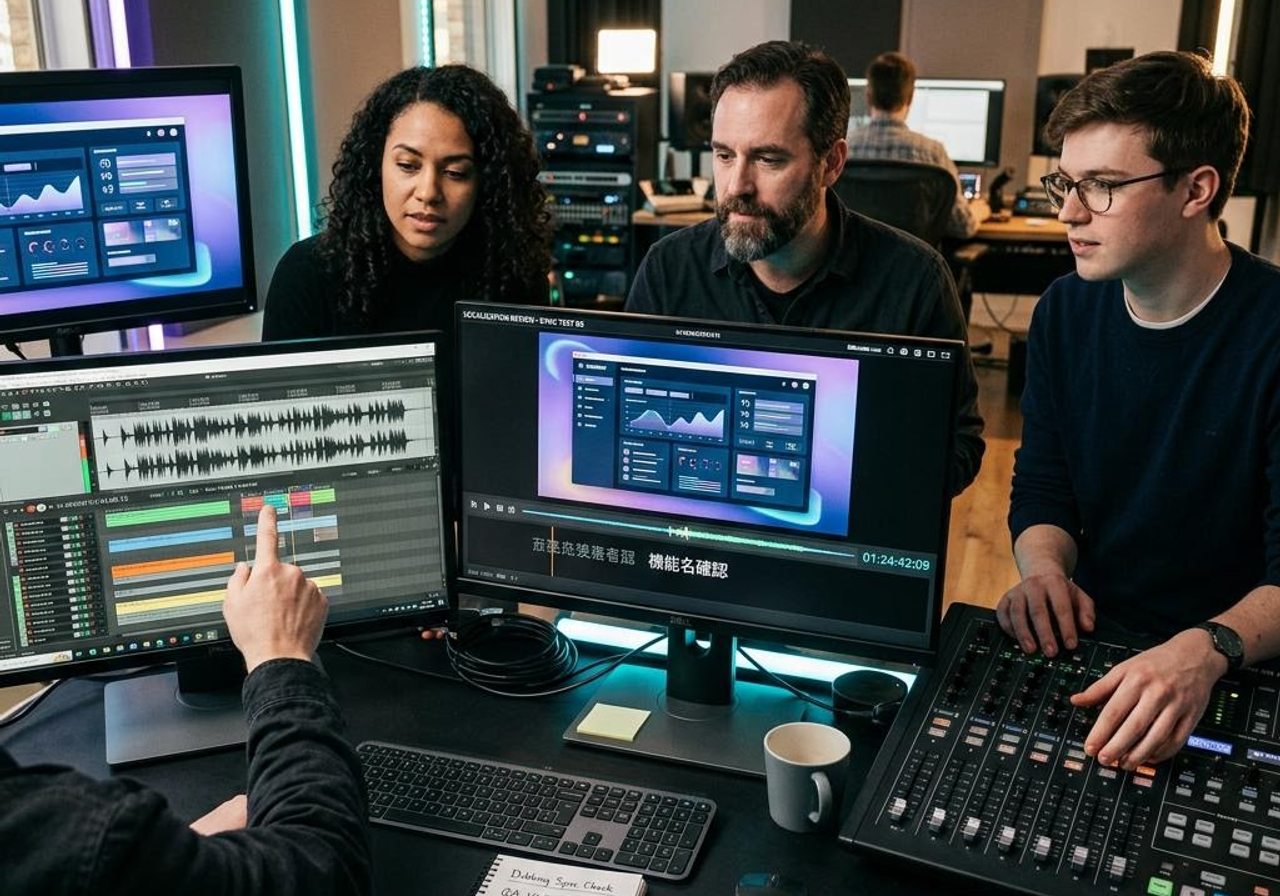
A dubbed feature name can sound right until the narrator points to a button with a different name. To prevent that conflict, decide how the feature will appear on screen, then check the dub, subtitle, and visible label at the moments viewers encounter them. If the UI label must stay in its original language, approve that exception explicitly rather than treating the tracks as separate translations.
This product demo cross-track terminology QA procedure uses a team-maintained feature-name register and a timestamped review. Ollang supports visual text localization on the same platform as subtitles and dubbing, so teams can review the resulting language tracks and visual output against one terminology decision. The register and timestamp checks are review practices, not automated Ollang features.
Build a Feature-Name Register From the Script and Visible UI
Start with the script, but do not rely on it as a complete inventory. Watch the demo and record each feature name spoken aloud alongside the label viewers actually see. Include labels on buttons, menus, and other relevant interface elements when they appear during the action being narrated.
Give each feature an approved treatment before reviewing the finished dub. A compact register makes the decision visible to everyone checking the audio, subtitles, and screen:
Register field | Example entry | Review purpose
|
|---|---|---|
Source feature name | Smart Queue | Identifies the feature across mentions |
Visible source label | “Smart Queue” button | Records what the viewer sees |
Proposed Spanish term | “Cola inteligente” | Provides a candidate for language review |
On-screen treatment | Localize the label or retain “Smart Queue” | Sets the visual decision |
Approved dub and subtitle term | “Cola inteligente” or “Smart Queue” | Sets the term to check in both tracks |
Approving reviewer | Assigned product or language reviewer | Records who approved the decision |
For example, the narrator says “Open Smart Queue” while clicking a button labeled “Smart Queue.” A Spanish dub says “Abra Cola inteligente.” If the finished video still shows “Smart Queue” at the click, viewers hear one feature name and see another.
There are two workable decisions. If the product team approves “Cola inteligente” for the UI, check that the localized visual output shows that label and that the dub and subtitle use the same term. If the product name must remain “Smart Queue,” record the exception and use that name in the dubbed line and subtitle. Neither decision follows automatically from the script translation.
Inspect the footage before choosing. A label may appear more than once, or remain visible while the narrator discusses another feature. The register establishes the approved wording; watching the video establishes where that wording needs to be checked.
Map Spoken Mentions to Subtitle Cues and Video Timestamps
A correct register entry does not prove that the finished demo is consistent. The dub may use an earlier candidate, a subtitle may use a different spelling, or the visible label may not have changed. Review each appearance in context.
For every named feature:
- Locate each spoken mention in the source script and finished dub.
- Note when the dubbed name is audible and when the relevant UI label is visible.
- Find the subtitle cue covering the spoken mention.
- Compare the dub and subtitle with the approved register entry.
- Check the label in the localized video at the point where the viewer is directed to it.
- Record any approved exception, including the exact wording required in the dub and subtitle.
- After a correction, revisit every affected appearance before approval.
Suppose the pointer reaches the “Smart Queue” button at 00:18. The dub says “Cola inteligente,” and the subtitle says “Smart Queue.” This is not solved by checking whether either translation is reasonable on its own. The reviewer must apply the approved decision: either the visual label, dub, and subtitle should use the localized term, or the retained product name should be used consistently where required.
Check the viewing moment, not just an isolated frame. The spoken name might begin before the pointer reaches the button, while the subtitle remains on screen after the click. Reviewing that short sequence helps the team judge what a viewer hears and reads as one action.
Supported Formats and Deliverables for a Cross-Track Review
Prepare the source video and any separate subtitle assets needed for the job. Ollang documents visual translation for embedded text in video and image assets. Its documented workflows describe detecting, translating, and replacing visual text in video to produce localized visual output.
Direct File Upload lists MP4, AVI, MOV, and WMV as supported video inputs. JPEG, JPG, and PNG are documented image inputs for image-to-image visual translation. SRT and VTT are listed as subtitle-related formats. These facts describe supported inputs and subtitle assets; they are not a complete specification of final export formats. Confirm the deliverables required for your demo when setting up the work.
An image of the product UI can help a reviewer identify a feature label and its approved spelling. It cannot establish that the label changed inside the video. Sign off on the on-screen treatment only after inspecting the localized video output at the affected timestamps.
The same distinction applies to the other tracks. A corrected subtitle asset does not prove that the dubbed line changed, and an approved dubbed line does not prove that the visual label was replaced. Collect the resulting assets needed for review and check each against the register.